> For the complete documentation index, see [llms.txt](https://medomicslab.gitbook.io/medomics-docs/llms.txt). Markdown versions of documentation pages are available by appending `.md` to page URLs; this page is available as [Markdown](https://medomicslab.gitbook.io/medomics-docs/contributing.md).
# Contributing
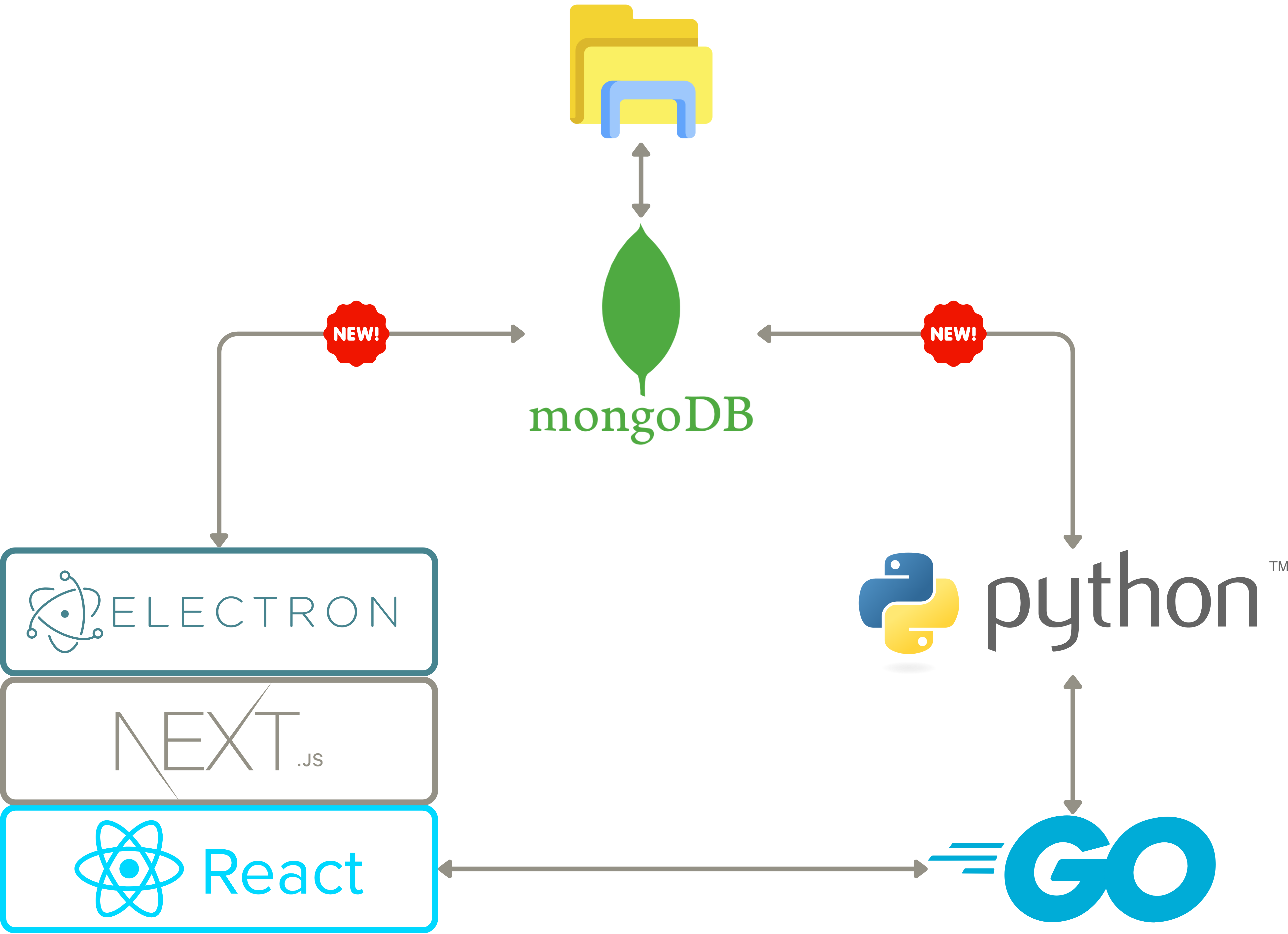
High-Level Architecture of the Main Framework Used in the Application
## The MEDomics platform architecture
The map below illustrates the organization of files, modules, databases, and the Frontend-Backend connection within the MEDomics platform. This visual guide is designed to support new contributors in understanding the application’s structure, streamlining the integration of new features, and aiding efficient navigation through the codebase.
{% embed url="" %}
the MEDomics platform detailed architecture
{% endembed %}
## Contribution Standards Summary
Before contributing to MEDomics, we highly recommend you take a look at our [coding standards](/medomics-docs/contributing/our-coding-standards.md).
## Contribute to MEDomics 🌱
{% hint style="info" %}
Contributing to MEDomics is done through our [GitHub development branch](https://github.com/MEDomics-UdeS/MEDomicsLab/tree/develop#medomicslab---develop-branch-%EF%B8%8F)!
{% endhint %}
### 1. Prerequisites
#### 1.1 Installation of MongoDB Community Edition
Follow the installation instructions depending on your OS for [MongoDB Installation](https://www.mongodb.com/docs/manual/administration/install-community/#std-label-install-mdb-community-edition).
{% tabs %}
{% tab title="Windows" %}
[Install MongoDB on Windows](https://www.mongodb.com/docs/manual/tutorial/install-mongodb-on-windows/#install-mongodb-community-edition)
* Do not install MongoDB as a service.
* You do not have to install MongoDB compass.
* You do not have to install mongosh.
* Do not forget to [add MongoDB binaries to the System PATH](https://www.mongodb.com/docs/manual/tutorial/install-mongodb-on-windows/#add-mongodb-binaries-to-the-system-path).
{% endtab %}
{% tab title="Linux" %}
[Install MongoDB on Linux (Ubuntu)](https://www.mongodb.com/docs/manual/tutorial/install-mongodb-on-ubuntu/#install-mongodb-community-edition) - Install the latest version of MongoD.
{% endtab %}
{% tab title="MacOS" %}
[Install MongoDB Database Tools on Mac](https://www.mongodb.com/docs/database-tools/installation/installation-macos/#installation) - Install with Homebrew.
{% endtab %}
{% endtabs %}
#### 1.2 Installation of MongoDB database tools
Follow the instructions depending on your OS for MongoDB Database Tools Installation.
{% tabs %}
{% tab title="Windows" %}
Install with the [MSI](https://www.mongodb.com/docs/database-tools/installation/?operating-system=windows\&package-type=msi) Installer.
{% endtab %}
{% tab title="Linux" %}
Install with the [DEB ](https://www.mongodb.com/docs/database-tools/installation/?operating-system=linux\&package-type=deb)package.
{% endtab %}
{% tab title="MacOS" %}
Install with [Homebrew](https://www.mongodb.com/docs/database-tools/installation/?operating-system=macos\&package-type=homebrew).
{% endtab %}
{% endtabs %}
### 2. Node.js and NVM Setup
#### 2.1 Installation of Nvm
* [NVM for Windows](https://github.com/coreybutler/nvm-windows)
* [NVM for Ubuntu/MacOS](< https://github.com/nvm-sh/nvm#installing-and-updating>)
#### 2.2 Installation of npm/node.js
```shellscript
nvm install lts
nvm use lts
```
{% hint style="warning" %}
Be careful, the next steps are different depending on the user's privileges.
{% endhint %}
For members of the MEDomicsLab GitHub organization
### 3. Clone the Repository
Using HTTPS:
```zsh
git clone -b develop https://github.com/MEDomicsLab/MEDomics.git
```
Using SSH:
```zsh
git clone -b develop git@github.com:MEDomicsLab/MEDomics.git
```
### 4. Backend Setup (Go)
#### 4.1 Install Go
1. Download the latest stable release of Go from the official website:
2. Follow the [installation instructions](https://go.dev/doc/install) for your operating system.
#### 4.2 Setup of environment
Execute these commands in the terminal:
After, **close all your terminals** because these commands will take effect on the initialization of any terminal
#### 4.3 Verify installation
In a new terminal, run:
```bash
go version
```
If Go is installed correctly, you should see the version number printed to the console.
#### 4.4 Setup for the application
```shellscript
cd /go_server
go run main.go # initial run installs dependencies
```
Next, build the executable:
```shellscript
go build main.go
```
{% hint style="warning" %}
Rebuild after any `.go` file modification.
{% endhint %}
### 5. Initialize submodules
```
cd <.../MEDomicsLab/>
git checkout dev_lab
cd ../MEDprofiles
git checkout fusion_MEDomicsLab
```
### 6. Create Your Own Branch
Always branch from `develop`, and ensure you have the latest changes:
```sh
git checkout develop
git pull origin develop
git checkout -b your-branch-name
# push your branch to MEDomics repository
git push --set-upstream origin your-branch-name
```
### 7. Make Changes
* Follow the project structure
* Keep commits **small and descriptive**
```bash
git add .
git commit -m "feat: add new feature X"
```
Commit naming conventions:
* `feat:` new feature
* `fix:` bug fix
* `docs:` documentation changes
* `refactor:` code restructuring
* `test:` tests added/updated
***
### 9. Push Changes
```bash
git push
```
***
### 10. Create a Pull Request
1. Go to the MEDomics GitHub [Pull Requests page](https://github.com/MEDomicsLab/MEDomics/pulls)
2. Click **New Pull Request**
3. Target branch: `develop`
4. Compare branch: `your-branch-name`
***
### 11. Pull Request Guidelines
Ensure:
* ✅ Code compiles and runs
* ✅ No console errors
* ✅ Proper formatting
* ✅ Tests pass (if applicable)
* ✅ Clear PR description:
* What was done
* Why was it done
* Screenshots (if UI changes)
***
### 12. Code Review Process
* Address reviewer comments
* Push updates to the same branch
* Keep discussion professional and concise
### 13. After Merge
```bash
git checkout develop
git pull
git branch -d feature/your-feature-name # Time for a new feature
```
For external users
### 🌱 Contributing via Fork (Common Practice)
This workflow is recommended for external contributors.
***
### 3. Fork the Repository
1. Go to the official repo
2. Click **Fork**
3. Clone your fork:
```bash
git clone https://github.com//MEDomicsLab.git
cd MEDomicsLab
```
***
### 4. Add Upstream Remote
```bash
git remote add upstream https://github.com/MEDomicsLab/MEDomicsLab.git
```
Verify:
```bash
git remote -v
```
***
### 5. Create a Feature Branch
Always branch from `develop`:
```bash
git fetch upstream
git checkout develop
git pull upstream develop
git checkout -b feature/your-feature-name
```
***
### 6. Backend Setup (Go)
#### 6.1 Install Go
1. Download the latest stable release of Go from the official website:
2. Follow the [installation instructions](https://go.dev/doc/install) for your operating system.
#### 6.2 Setup of environment
Execute these commands in the terminal:
After, **close all your terminals** because these commands will take effect on the initialization of any terminal
#### 6.3 Verify installation
In a new terminal, run:
```bash
go version
```
If Go is installed correctly, you should see the version number printed to the console.
#### 6.4 Setup for the application
```shellscript
cd /go_server
go run main.go # initial run installs dependencies
```
Next, build the executable:
```shellscript
go build main.go
```
{% hint style="warning" %}
Rebuild after any `.go` file modification.
{% endhint %}
***
### 7. Make Changes
* Follow the project structure
* Keep commits **small and descriptive**
```bash
git add .
git commit -m "feat: add new feature X"
```
Commit naming conventions:
* `feat:` new feature
* `fix:` bug fix
* `docs:` documentation changes
* `refactor:` code restructuring
* `test:` tests added/updated
***
### 8. Sync with Upstream
Before pushing:
```bash
git fetch upstream
git rebase upstream/develop
```
***
### 9. Push Changes
```bash
git push origin feature/your-feature-name
```
***
### 10. Create a Pull Request
1. Go to your fork on GitHub
2. Click **Compare & Pull Request**
3. Target branch: `develop` (base repo)
***
### 11. Pull Request Guidelines
Ensure:
* ✅ Code compiles and runs
* ✅ No console errors
* ✅ Proper formatting
* ✅ Tests pass (if applicable)
* ✅ Clear PR description:
* What was done
* Why was it done
* Screenshots (if UI changes)
***
### 12. Code Review Process
* Address reviewer comments
* Push updates to the same branch
* Keep discussion professional and concise
***
### 13. After Merge
```bash
git checkout develop
git pull upstream develop
git branch -d feature/your-feature-name
```
### Run the Electron App
{% code fullWidth="false" %}
```shellscript
cd
npm install
npm run dev
```
{% endcode %}
{% hint style="warning" %}
On **Windows**, if you encounter error messages when running `npm install`related to tensorflow .dll files missing, revert your node version by following these steps:
* [Download node v18.16.1](https://nodejs.org/fr/blog/release/v18.16.1)
* Add to the PATH variable the path to your new node placing it higher than the old node.
* Test your node version using: `node --version`
{% endhint %}
{% hint style="info" %}
**MongoDB configuration**
The MEDomicsLab platform uses **port 54017** as the default MongoDB connection port. For database visualization and management, we recommend using [MongoDB Compass](https://www.mongodb.com/products/compass), the official GUI client from MongoDB.
**Key Details**:
* Default Port: `54017`
* Recommended Client: MongoDB Compass
* Connection String Format: `mongodb://localhost:54017/`
{% endhint %}
{% hint style="info" %}
#### Modify startup settings
1. Go to file `medomics.dev.js`
2. Here is a description of the Object:
```javascript
export const PORT_FINDING_METHOD = {
FIX: 0,
AVAILABLE: 1
};
const config = {
// Automatically starts the backend server when the app launches
runServerAutomatically: true,
// Enables React Developer Tools (useful for debugging UI)
useReactDevTools: false,
// Default port used by the Electron/Go server
defaultPort: 54288,
// MongoDB connection port
mongoPort: 54017,
// Port allocation strategy:
// FIX -> Forces use of defaultPort (terminates conflicting processes if needed)
// AVAILABLE -> Finds the next available port if defaultPort is occupied
portFindingMethod: PORT_FINDING_METHOD.FIX
};
export default config;
```
{% endhint %}
## Testing Production Builds
### Build & Run
{% tabs %}
{% tab title="Windows" %}
```powershell
npm run build:win # build and package the application
.\build\dist\win-unpacked\MEDomics.exe # Run the executable of the built version
```
{% endtab %}
{% tab title="Linux" %}
```bash
npm run build:linux # build and package the application
bash build/dist/linux-unpacked/medomics-platform # Run the executable of the built version
```
{% endtab %}
{% tab title="Mac" %}
```zsh
npm run build:mac # build and package the application
bash build/dist/mac-arm64/MEDomicsLab.app/Contents/MacOS/medomics-platform # Run the executable of the built version
```
{% endtab %}
{% endtabs %}
The built app will be located in the `build/dist` folder.
---
# Agent Instructions
This documentation is published with GitBook. GitBook is the documentation platform designed so that both humans and AI agents can read, navigate, and reason over technical content effectively. Learn more at gitbook.com.
## Querying This Documentation
If you need additional information that is not directly available in this page, you can query the documentation dynamically by asking a question.
Perform an HTTP GET request on the current page URL with the `ask` query parameter, and the optional `goal` query parameter:
```
GET https://medomicslab.gitbook.io/medomics-docs/contributing.md?ask=&goal=
```
`ask` is the immediate question: it should be specific, self-contained, and written in natural language.
`goal` is optional and describes the broader end goal you are ultimately trying to accomplish on behalf of the user. GitBook uses it to tailor the answer towards what is most useful for that goal.
The response will contain a direct answer to the question and relevant excerpts and sources from the documentation.
Use this mechanism when the answer is not explicitly present in the current page, you need clarification or additional context, or you want to retrieve related documentation sections.