> For the complete documentation index, see [llms.txt](https://medomicslab.gitbook.io/medomics-docs/llms.txt). Markdown versions of documentation pages are available by appending `.md` to page URLs; this page is available as [Markdown](https://medomicslab.gitbook.io/medomics-docs/medomicslab-docs-v0/contributing.md).
# Contributing
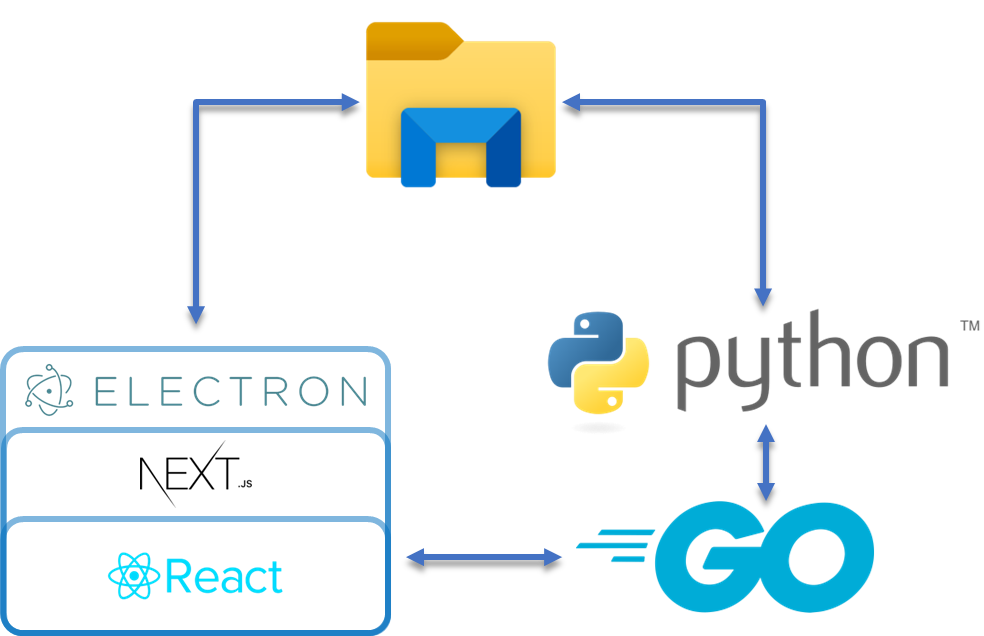
High-Level Architecture of the Main Framework Used in the Application
## Setup from the ground up 🌱
{% hint style="info" %}
Go visit our [github develop branch ](https://github.com/MEDomics-UdeS/MEDomicsLab/tree/develop#medomicslab---develop-branch-%EF%B8%8F)!
{% endhint %}
### Scalability Branch
{% hint style="info" %}
The requirements in this section are only necessary if you want to work from the scalability branch.
{% endhint %}
#### 1. Installation of MongoDB Community Edition
Follow the installation instructions depending on your OS [MongoDB Installation](https://www.mongodb.com/docs/manual/administration/install-community/#std-label-install-mdb-community-edition).
{% tabs %}
{% tab title="Windows" %}
[Install MongoDB on Windows](https://www.mongodb.com/docs/manual/tutorial/install-mongodb-on-windows/#install-mongodb-community-edition)
* Do not install MongoDB as a service.
* You do not have to install MongoDB compass.
* You do not have to install mongosh.
* Do not forget to [add MongoDB binaries to the System PATH](https://www.mongodb.com/docs/manual/tutorial/install-mongodb-on-windows/#add-mongodb-binaries-to-the-system-path).
{% endtab %}
{% tab title="Linux" %}
[Install MongoDB on Linux (Ubuntu)](https://www.mongodb.com/docs/manual/tutorial/install-mongodb-on-ubuntu/#install-mongodb-community-edition)
* Install the latest version of MongoDB
{% endtab %}
{% tab title="Mac" %}
[Install MongoDB on Mac](https://www.mongodb.com/docs/manual/tutorial/install-mongodb-on-os-x/#install-mongodb-community-edition)
{% endtab %}
{% endtabs %}
#### 2. Installation of MongoDB database tools
Follow the installation instructions depending on your OS [MongoDB Database Tools Installation](https://www.mongodb.com/docs/database-tools/installation/installation/).
{% tabs %}
{% tab title="Windows" %}
[Install MongoDB Database Tools on Windows](https://www.mongodb.com/docs/database-tools/installation/installation-windows/#installation)
* Install with the MSI Installer.
{% endtab %}
{% tab title="Linux" %}
[Install MongoDB Database Tools on Linux](https://www.mongodb.com/docs/database-tools/installation/installation-linux/#installation)
* Install with the DEB package.
{% endtab %}
{% tab title="Mac" %}
[Install MongoDB Database Tools on Mac](https://www.mongodb.com/docs/database-tools/installation/installation-macos/#installation)
* Install with Homebrew.
{% endtab %}
{% endtabs %}
### 1. Installation of Nvm
* [NVM for Windows](https://github.com/coreybutler/nvm-windows)
* [NVM for Ubuntu](< https://github.com/nvm-sh/nvm#installing-and-updating>)
### 2. Installation of npm/node.js
```
nvm install lts
nvm use lts
```
### 3. Clone the repository
{% hint style="warning" %}
We are currently using *develop* as our main branch.
{% endhint %}
{% tabs %}
{% tab title="HTTPS" %}
```
git clone -b develop https://github.com/MEDomics-UdeS/MEDomicsLab.git
```
{% endtab %}
{% tab title="SSH" %}
{% endtab %}
{% endtabs %}
### 4. Setup server side (Go)
#### 4.1 Installation of Go
1. Download the latest stable release of Go from the official website:
2. Follow the [installation instructions](https://go.dev/doc/install) for your operating system.
#### 4.2 Setup of environment
{% tabs %}
{% tab title="Windows" %}
Execute these commands in a **cmd** prompt:
```
setx GOPATH %USERPROFILE%\go
setx PATH "%PATH%;C:\Go\bin"
```
{% endtab %}
{% tab title="Linux and Mac" %}
Execute these commands in a terminal:
```
echo 'export PATH=$PATH:/usr/local/go/bin' >> $HOME/.bashrc
echo 'export GOPATH=$HOME/go' >> $HOME/.bashrc
echo 'export PATH=$PATH:$GOPATH/bin' >> $HOME/.bashrc
```
{% endtab %}
{% endtabs %}
After, **close all your terminals** because these commands will take effects on the initialisation of any terminal
#### 4.3 Verify installation
1. Open a new terminal
2. Run the command `go version`
3. If Go is installed correctly, you should see the version number printed to the console.
#### 4.4 Setup for the application
1. Open a new command prompt and go to the `/go_server` directory.
2. Run the command `go run main.go` (on first time, it should download requiered libraries and lunch the server)
3. you can terminate the process by pressing `CTRL + C`
4. Then build the app by running `go build main.go` (It should create an executable file -> that file will be run by the client side javascript so modification to .go files must be followed by a rebuild) Congratulations, you're now ready to start developing Go applications!
### 5. Init submodules
```
cd <.../MEDomicsLab/>
git submodule init
git submodule update --init --recursive --remote
cd pythonCode/submodules/MEDimage
git checkout dev_lab
cd ../MEDprofiles
git checkout fusion_MEDomicsLab
```
### 6. Start the electron app !
{% code fullWidth="false" %}
```
cd <.../MEDomicsLab>
npm install
npm run dev
```
{% endcode %}
{% hint style="warning" %}
On **Windows**, if you encounter error messages when running `npm install,`follow the steps here to solve the issue : .
* You will need to install the [Visual Studio Build Tools](https://visualstudio.microsoft.com/thank-you-downloading-visual-studio/?sku=Community) (select the C++ build environment)
* Install Python3.11 from [here](https://apps.microsoft.com/detail/9nrwmjp3717k?hl=en-us\&gl=US)
* Use node version v18.16.1. Run:
* `nvm install v18.16.1`
* `nvm use v18.16.1`
* Set the Python3.11 :
* `$Env:npm_config_python="C:\path\to\python.exe" # PowerShell`
* Run `npm install -g node-gyp`
* Run again `npm install`
{% endhint %}
{% hint style="info" %}
#### Modify startup settings
1. Go to file `medomics.dev.js`
2. Here is a description of the Object:
```javascript
const config = {
// If true, the server will be run automatically when the app is launched
runServerAutomatically: true,
// If true, use the react dev tools
useReactDevTools: false,
// the default port to use for the server, be sure that no programs use it by default
defaultPort: 5000,
// Either "FIX" or "AVAILABLE" (case sensitive)
// FIX -> if defaultPort is used, force terminate and use defaultPort
// AVAILABLE -> if defaultPort is used, iterate to find next available port
portFindingMethod: PORT_FINDING_METHOD.FIX
}
```
{% endhint %}
## To Test the Production Build
### Build the Electron app and Run the built version
{% tabs %}
{% tab title="Windows" %}
```
npm run build:win # build and package the application
.\build\dist\win-unpacked\MEDomicsLab.exe # Run the executable of the built version
```
{% endtab %}
{% tab title="Linux" %}
```
npm run build:linux # build and package the application
bash build/dist/linux-unpacked/medapp # Run the executable of the built version
```
{% endtab %}
{% tab title="Mac" %}
```
npm run build:mac # build and package the application
bash build/dist/mac-arm64/MEDomicsLab.app/Contents/MacOS/MEDomicsLab # Run the executable of the built version
```
{% endtab %}
{% endtabs %}
> The built app will be located in the `build/dist` folder
---
# Agent Instructions
This documentation is published with GitBook. GitBook is the documentation platform designed so that both humans and AI agents can read, navigate, and reason over technical content effectively. Learn more at gitbook.com.
## Querying This Documentation
If you need additional information that is not directly available in this page, you can query the documentation dynamically by asking a question.
Perform an HTTP GET request on the current page URL with the `ask` query parameter, and the optional `goal` query parameter:
```
GET https://medomicslab.gitbook.io/medomics-docs/medomicslab-docs-v0/contributing.md?ask=&goal=
```
`ask` is the immediate question: it should be specific, self-contained, and written in natural language.
`goal` is optional and describes the broader end goal you are ultimately trying to accomplish on behalf of the user. GitBook uses it to tailor the answer towards what is most useful for that goal.
The response will contain a direct answer to the question and relevant excerpts and sources from the documentation.
Use this mechanism when the answer is not explicitly present in the current page, you need clarification or additional context, or you want to retrieve related documentation sections.